Giving Colleag access to GitHub
Your documents live in your own GitHub organisation, not inside Colleag. That is deliberate: they stay yours, in a standard format, in a place you control, whether or not you keep using us.
For that to work, Colleag needs permission to read and write those repositories. You grant it by installing an app. This page explains what you are agreeing to, in plain terms.
You need to be an owner of your GitHub organisation to do this. It takes about a minute. If you are the one clicking through it, step by step with pictures, see Getting started with GitHub.
What you are installing
A GitHub App called Colleag.ai. A GitHub App is not a person and not a password — it is an integration with its own identity, and GitHub is strict about what it can do:
- It can only touch the repositories you choose. You can pick one, or a few, or all of them, and you can change your mind later.
- Every permission it asks for is listed on the screen before you approve.
- Everything it does appears in your organisation's audit log as the app, not as one of your colleagues.
- You can remove it completely at any time, from your own settings, without asking us.
What it can do
Three permissions, and nothing else:
| Permission | What it means in practice |
|---|---|
| Contents — read and write | Read your documents, and write the changes you approve in Colleag |
| Administration — read and write | Create the repository for your workspace the first time, if it does not exist yet |
| Metadata — read | See the names of the repositories you selected. GitHub requires this and grants it automatically |
This is how GitHub shows the same thing in the install dialog — Contents is called "code" there:
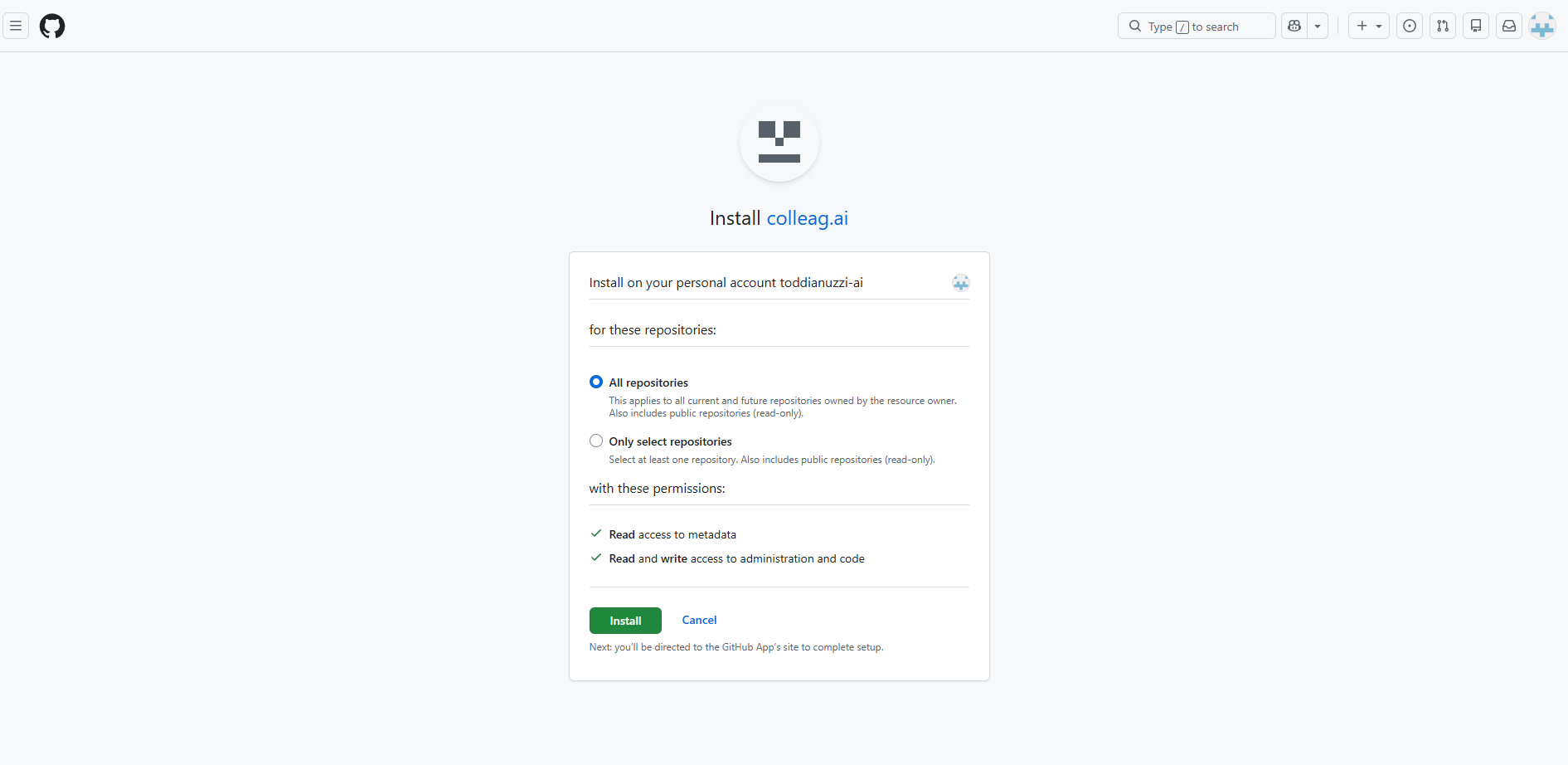
Screenshot 2026-09-29.
What it cannot do
It has no access to anything you did not select. That means no other repositories, no other organisations, and nothing in anyone's personal account.
It cannot read your GitHub password, act as you, or see your organisation's billing or member list. It cannot invite people, change your settings, or add other integrations.
It also cannot quietly gain new abilities. If a future version of Colleag needs a permission that is not on the list above, GitHub asks an owner to approve the change. Nothing expands behind your back.
How it actually connects
Worth knowing if someone asks, because it is the part people expect to be worse than it is.
Colleag holds a key that proves "I am the Colleag.ai app". It never sends that key to GitHub as a password. Instead it uses the key to request a temporary access token that is limited to your installation only — your organisation, your selected repositories — and that expires after one hour.
So what actually reaches your repositories is always a short-lived, narrowly scoped token. Nothing long-lived is stored anywhere near your code.
Whose name appears on changes
Yours. When someone on your team approves a change in Colleag, the commit carries that person's name and email address, not the app's. Your history stays readable: you can see who decided what, months later, without needing Colleag to interpret it.
Which repository
Colleag keeps your documents in two repositories in your organisation:
colleag for product documents and colleag-comp for company-wide
documents — standards, processes, company records. If your organisation is
contoso, they are contoso/colleag and contoso/colleag-comp. You can give
the product repository another name under Settings → Your Data before the
first product is created; after that the name is fixed.
That matters when you choose what the app may access:
All repositories — simplest. Colleag creates the repositories the first time they are needed, with the right names, and you do not have to prepare anything.
Only select repositories — the tighter choice, and the one most IT departments prefer. The app cannot create a repository it has not been given access to, so there is an order to follow: create both repositories yourself first, with exactly those names, then select them during installation. Skip that and the connection test fails with a repository-not-found error, because the repository Colleag looks for does not exist yet.
Either way you can change the selection later in GitHub without reinstalling.
Installing it
- Open the app's page, github.com/apps/colleag-ai, and click Install.
- Choose your organisation — not your personal account.
- Choose which repositories the app may access — see Which repository above, because the name matters.
- Review the permissions and select Install.
- GitHub returns you to Colleag with a number in the address bar called
installation_id. Copy it into Settings → Your Data, along with your organisation name, and click Save & test connection.
A green result means Colleag can reach the repository. If it fails, the message says what is wrong — usually the organisation name is spelled differently from the one on GitHub.
Removing it
In GitHub: your organisation → Settings → GitHub Apps → Colleag.ai → Configure → Uninstall.
Access stops immediately. Your repositories, and everything in them, stay exactly where they are — they were always yours, and removing the app does not touch a single file.
Common questions
Can Colleag see our other repositories? No. Only the ones you selected during installation.
Can we start with only what is needed?
Yes, and it is the sensible way to start. Make sure it is the colleag and
colleag-comp repositories — see Which repository — and create them
yourself first if you are limiting the app to a selection. You can add more
whenever you like.
Does this give Colleag access to our GitHub account? No. The app has its own identity. It cannot sign in as anyone, and it inherits nothing from the person who installed it.
What happens if we stop using Colleag? Nothing happens to your documents. They are plain Markdown and YAML files in your own repository, readable without any of our software. Uninstall the app and they are simply yours, as they always were.
Next: Integrations and your ERP →